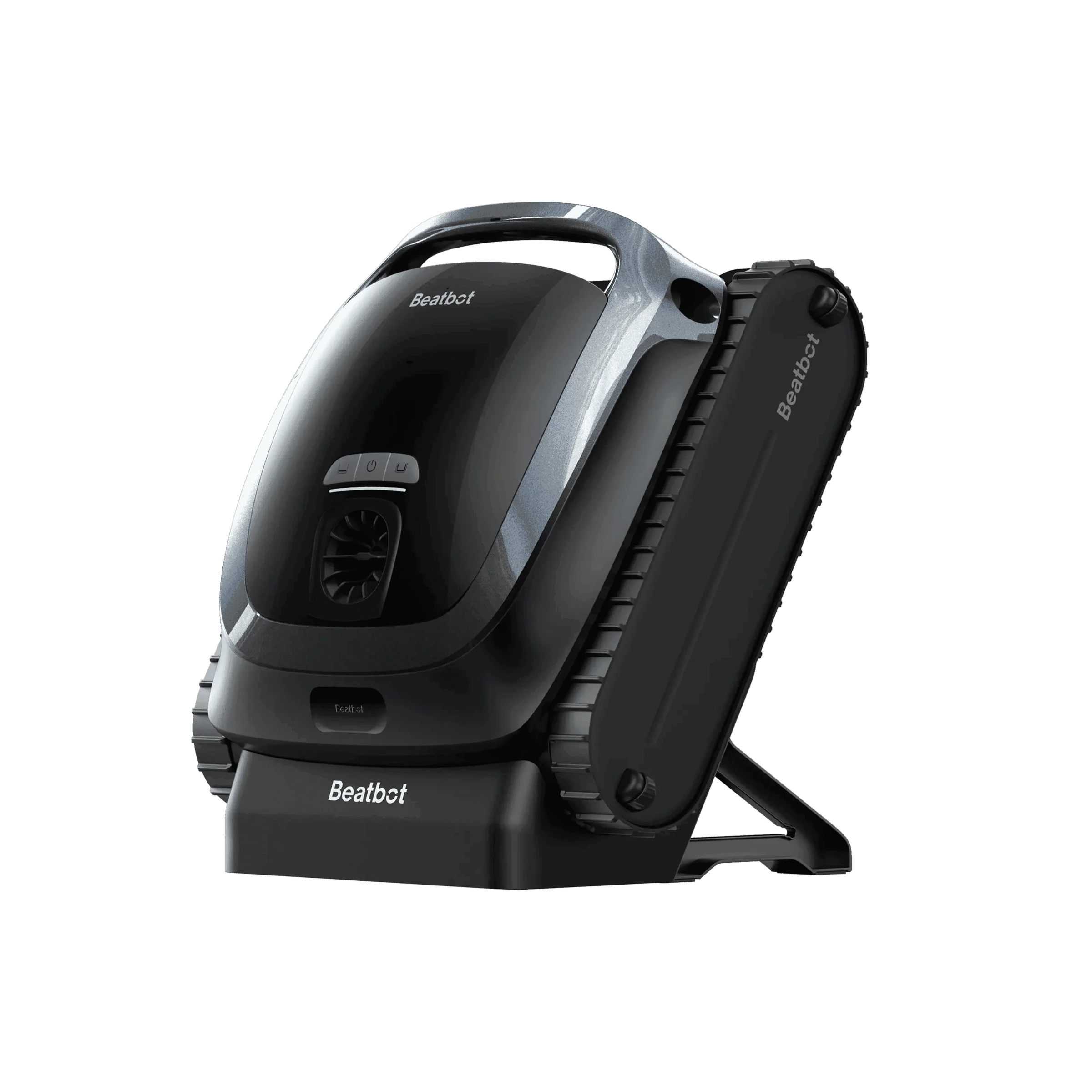
The Beatbot app is the companion app for your Beatbot robotic pool cleaner, used to pair your Beatbot robot to your home network, schedule cleans, choose a cleaning mode and check on progress from your phone. This guide walks through setup, what you can typically control, how HybridSense AI mapping appears on supported models, and what to do if the app won't connect.
How do you set up the Beatbot app?
Download the Beatbot app from the App Store or Google Play, create an account, then follow the in-app prompts to pair your robot and connect it to your home Wi-Fi. Most premium robotic pool cleaners follow the same general pattern: power on the robot, enable Bluetooth and location on your phone, add the device in the app, then join it to a 2.4GHz Wi-Fi network.
For Beatbot models specifically:
- Charge or power on the robot before starting setup.
- Open the Beatbot app and create and account or sign in to an existing account.
- Follow the prompts to add your robot, which typically pairs first over Bluetooth at close range.
- Connect the robot to your home Wi-Fi so you can schedule and monitor remotely, not just when standing at the pool.
Keep your phone close to the pool during pairing. Bluetooth setup steps are sensitive to distance, and a strong initial connection makes the Wi-Fi handoff far more reliable.
What can you control from the app?
The Beatbot app is generally used to select a cleaning mode, and check the robot's status and battery level without walking out to the pool. On models in the Beatbot Sora range, this typically means surfaces that you want to be cleaned (floors, walls, waterline and surface skimming) so your Sora pool robot cleans the areas of your pool you want - this can be set to all of these surfaces or isolated to what you specifically want.
Common app controls across Beatbot's premium robotic pool cleaners, at a general level, include:
- Choosing a cleaning mode suited to the job, such as floor, waterline or a full clean, where the model supports it.
- Monitoring live status, including whether the robot is cleaning, docked or charging.
- Checking battery level and estimated remaining runtime.
- Receiving notifications when a clean finishes or if the robot needs attention.
- If there is an error and why
Exactly which controls appear depends on the model, since features are tied to what sensors and motors that robot has onboard.
How does HybridSense AI mapping show in the app?
On the Beatbot AquaSense 2 Ultra, HybridSense AI Pool Mapping combines 3D camera vision, infrared and ultrasonic sensing to build a map of your pool, which the robot uses to plan optimised cleaning paths and cover corners and complex shapes. In the app, this generally translates to a visual view of your pool layout and coverage, giving you a sense of where the robot has cleaned.
HybridSense AI mapping is a feature of the AquaSense 2 Ultra rather than the whole Beatbot range, so the mapping view in the app will only appear when you're paired with a HybridSense-equipped model.
Troubleshooting: what if the app won't connect?
Most app connection issues come down to Wi-Fi band, permissions or distance. Confirm your phone is joined to a 2.4GHz network rather than 5GHz, that Bluetooth and location are enabled on your phone, and that you're within range of the robot, then restart both the robot and the app before trying again.
A general troubleshooting checklist:
- Check your home network is broadcasting on 2.4GHz, as many smart devices, including robotic pool cleaners, don't support 5GHz-only networks.
- Enable Bluetooth and location permissions for the app on your phone.
- Move closer to the robot during pairing, then move back to test the Wi-Fi connection once paired.
- Restart the robot by powering it off and on, then reopen the app.
- Check for a firmware update in the app and install it if one is available, since outdated firmware can affect connectivity.
- Restart your phone if the app still won't detect the robot.
If you've worked through these steps and the robot still won't connect, or the issue looks like a hardware fault rather than an app or network problem, see our warranty and support guide for how to get it assessed.
For the wider range, including entry-level and mid-range options, browse the Pool Cleaner Robot collection to compare which model suits your pool.
Frequently Asked Questions
Is the Beatbot app free to use?
Yes, the Beatbot app is free to download and use with your Beatbot robotic pool cleaner.
Which Beatbot models work with the app?
The current Beatbot range, including the Sora 10, Sora 30, Sora 70, AquaSense 2, AquaSense 2 Pro and AquaSense 2 Ultra, pairs with the Beatbot app. Available features vary by model, since they depend on each robot's sensors and capabilities.
Does the app use Bluetooth or Wi-Fi?
The Beatbot app generally uses Bluetooth for initial pairing at close range, then connects the robot to your home Wi-Fi for ongoing scheduling and monitoring.
Can I control the robot when I'm away from home?
Once your robot is connected to your home Wi-Fi through the app, you should be able to check status and manage schedules remotely, not just while standing at the pool.
What if a firmware update fails to install?
Restart the robot and your phone, confirm you have a stable Wi-Fi connection, then try the update again from the app.
Do I need the app to run my Beatbot pool cleaner?
No, Beatbot robotic pool cleaners are generally designed to run a clean using onboard controls, with the app adding scheduling, mode selection and remote monitoring on top.